I’m having trouble aligning text within a code block. I have tried using spaces and tabs both, but it doesn’t want to cooperate. How can I do it? Thanks.
Welcome to the Notenik forums, and thanks for posting!
Let me look into this a bit…
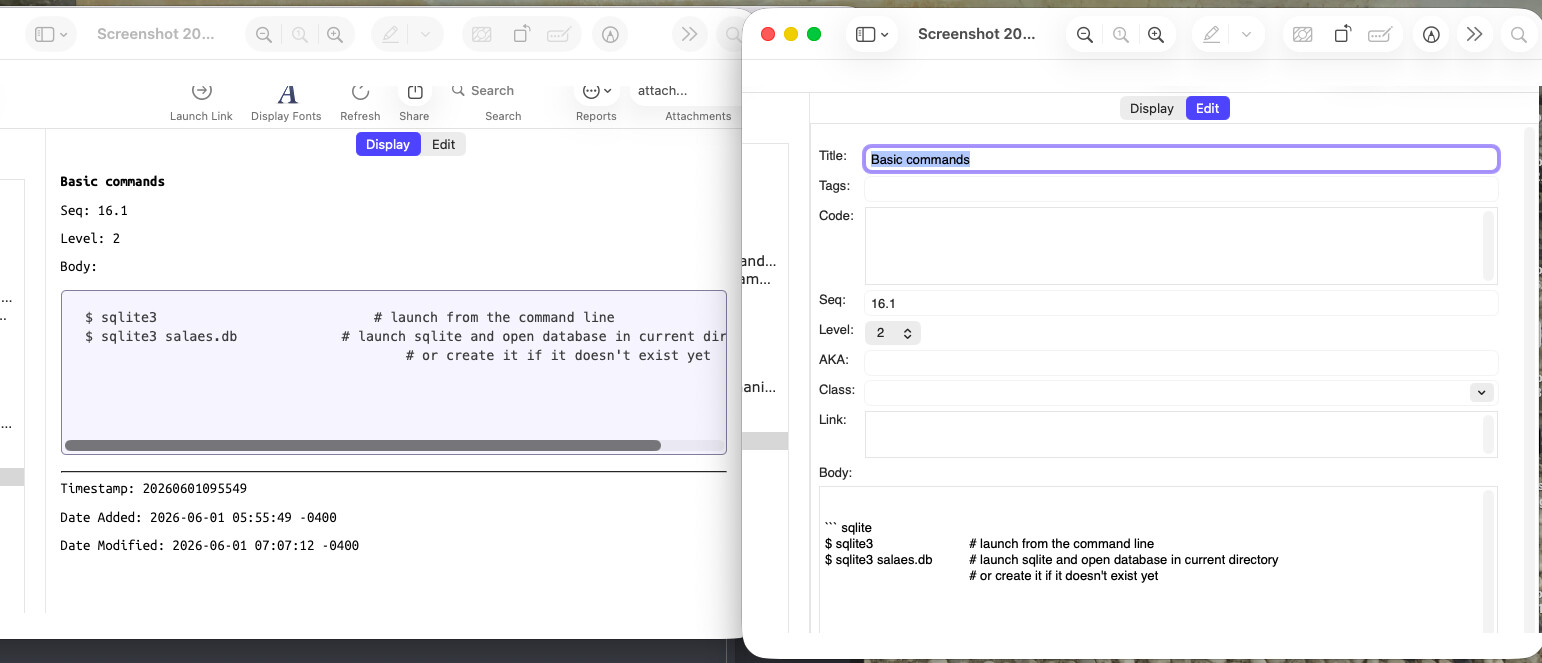
The basic problem is the use of a monospaced font for editing, to match the monospacing used when the code is displayed.
There are a couple of possibilities.
- If you put the code in a separate
Codefield, instead of in the Body, and then click on the Edit button to edit the code, the resulting edit box should be using a monospaced font, to match the monospacing of the display. - You could use a separate text editor to edit the notes. Typically such a text editor will allow more control over the font, and/or will allow you to set a coding mode that will use monospacing by default.
Let me know if one of these works for you!
And thanks again for reporting the issue!
Also, if you use the View → Adjust Edit Fonts window, you can change the editing font to something more appropriate for code, such as Menlo.
This will provide a monospaced font for editing, even when editing in the Body field.
Be sure and use the latest beta for this, though, since your inquiry prompted me to use this window for the first time in Tahoe and it turned out it needed better spacing for the new System UI. The new beta should provide this fix.
Be aware, though, that this adjustment will apply to all of your collections, and not just to the current one.
Hope this helps!
Thanks, Mr Bowie. This one worked. Changed the font to Menlo. I’m running v. 19.0.0 (982).
1 Like
@hbowie missed a third option.
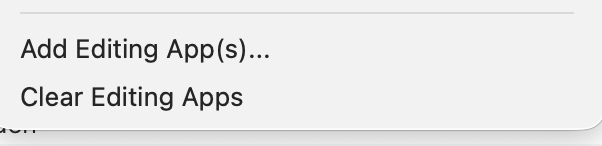
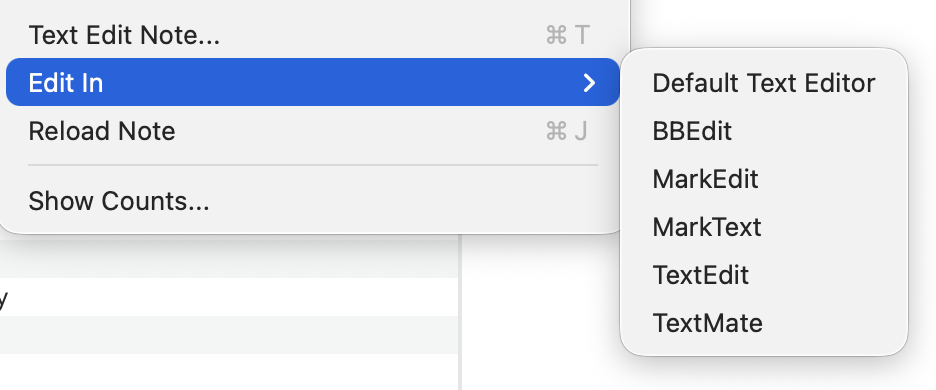
Notenik allows you to specify multiple editing apps.
You have to specify the ones you want to use. Do so using the command at the bottom of the File menu, Add Editing App(s)...
When you have more than one editing app, you can set one to monospace font and another to a proportional font, then you have the best of both worlds.
1 Like